One of the most common uses of ServiceNow is importing and storing data. Data import is often facilitated through import sets and transform maps. But what if you need to ensure data accuracy before a file is even attached? By validating the contents of an Excel file in advance, you can prevent users from uploading incorrect templates and ensure consistency right from the start.
One of the most common uses of ServiceNow is importing and storing data. While import sets and transform maps have their own methods of validating the data before the data is imported into the system, it is also possible to validate the contents of an Excel file before allowing a user to attach it to the record.
By using the GlideExcelParser API, you can easily validate cell values of any .xlsx file imported into ServiceNow to ensure submitted attachments are the correct file or template.
The Process
For this example, I am going to create a record producer on the Incident table that aims to take in a spreadsheet that will be validated before the Incident is created. If the correct template is not attached, I will abort the creation of the record. This will prevent users from submitting incorrect files and could also be used as a way to force users to use a supplied template.
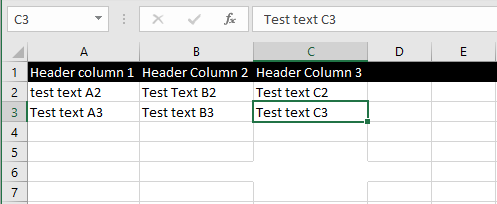
Here is the example spreadsheet I will be using. I will validate that upon submission the text in cell C3 is “Test text C3”.
Get Attachment ID
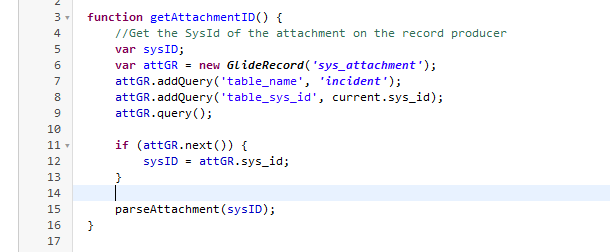
First, in order to use the GlideExcelParser API, you need to pass in the GlideScriptableInputStream of the attachment, which can be attained with the GlideSysAttachment API. Below, I am using a simple GlideRecord query to obtain the attachment’s sys_id.
Parse Attachment and Validate Cell Data
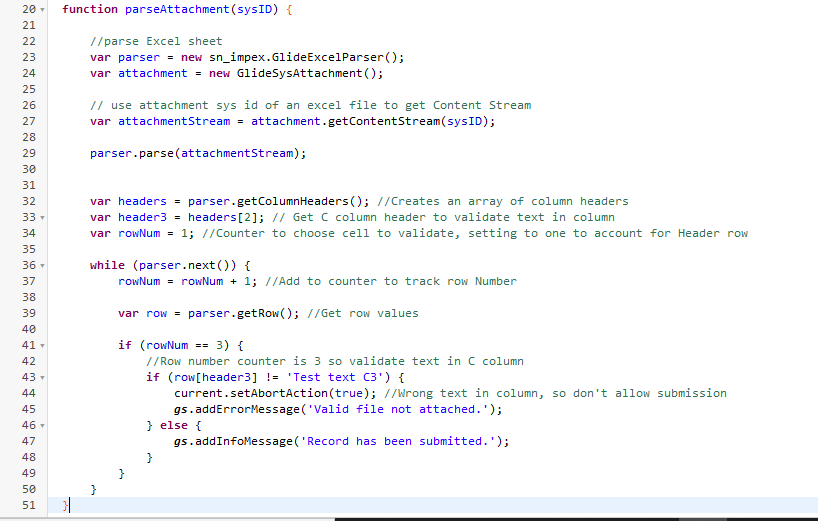
Now that I have obtained the sysID of the attachment on the record, I can pass that into a parser function. In this function, I access the GlideScriptableInputStream using getContentStream() in the GlideSysAttachment API. Once that is gathered, I can parse the file by using the GlideExcelParser API and its associated methods. Notes: According to the ServiceNow documentation, the namespace sn_impex must be used when creating a GlideExcelParser object. Also, this parser only applies for files of the .xlsx file type. In order to prevent users from submitting other files, a check must be added that validates the extension on the submitted attachment.
The GlideExcelParser API for Excel validation is a powerful option for data quality control. By requiring users to submit the correct file template, you’re able to streamline data accuracy and prevent issues before they arise. Whether you’re managing Incidents or other record types, this approach keeps your data clean and your processes efficient.
Further documentation
For more information about the GlideExcelParser API, including other methods that are available, check out the ServiceNow documentation site here.
While the above technical tip has been provided with care and consideration, it’s important to acknowledge that individual circumstances may vary. Always ensure compatibility and feasibility within your specific ServiceNow environment before implementing any suggestions. Additionally, back up your data and proceed with caution when making any changes to your instance or workflows.
As with any change in ServiceNow, make sure you test any changes prior to moving to production.
Streamlining Data Validation with GlideExcelParser
The GlideExcelParser API in ServiceNow allows you to validate the cell values of any .xlsx file imported into the platform. This ensures that submitted attachments are the correct file or template, improving data accuracy and preventing potential issues.
By leveraging the GlideSysAttachment API to obtain the GlideScriptableInputStream of the attachment, you can seamlessly integrate the GlideExcelParser into your workflows. This approach helps maintain data integrity across various record types, optimizing your processes and enhancing operational efficiency.
Best Practices for Effective Data Validation
When implementing data validation using the GlideExcelParser, it's crucial to follow ServiceNow's recommended practices. Ensure that the namespace "sn_impex" is used when creating the GlideExcelParser object, and note that this parser only supports the .xlsx file type.
By requiring users to submit the correct file template, you can streamline data accuracy and prevent issues before they arise. This approach keeps your data clean and your processes efficient, ultimately improving the overall quality of your ServiceNow implementation.
Unlocking the Full Potential of GlideExcelParser
The GlideExcelParser API offers a range of additional methods and capabilities beyond the basic data validation use case. Explore the ServiceNow documentation to discover the full potential of this powerful tool and how it can be leveraged to enhance your organization's data management and decision-making processes.
Remember that while the technical guidance provided here is intended to be helpful, individual circumstances may vary. It's essential to carefully consider your specific requirements and adapt the approaches accordingly to ensure the best possible outcomes for your ServiceNow implementation.
Integrating Excel Data with ServiceNow Workflows
The seamless integration of Excel data into ServiceNow workflows is a key aspect of effective data management. By leveraging the GlideExcelParser API, you can automate the validation process, ensuring that the information imported from Excel aligns with your ServiceNow data standards and requirements.
This integration not only enhances data quality but also streamlines your overall processes, allowing your team to focus on strategic initiatives rather than manual data validation tasks. Explore the possibilities of this integration to unlock new efficiencies and drive better decision-making within your organization.
Streamlining Data Validation with GlideExcelParser
The GlideExcelParser API in ServiceNow allows you to validate the cell values of any .xlsx file imported into the platform. This ensures that submitted attachments are the correct file or template, improving data accuracy and preventing potential issues.
By leveraging the GlideSysAttachment API to obtain the GlideScriptableInputStream of the attachment, you can seamlessly integrate the GlideExcelParser into your workflows. This approach helps maintain data integrity across various record types, optimizing your processes and enhancing operational efficiency.
Best Practices for Effective Data Validation
When implementing data validation using the GlideExcelParser, it's crucial to follow ServiceNow's recommended practices. Ensure that the namespace "sn_impex" is used when creating the GlideExcelParser object, and note that this parser only supports the .xlsx file type.
By requiring users to submit the correct file template, you can streamline data accuracy and prevent issues before they arise. This approach keeps your data clean and your processes efficient, ultimately improving the overall quality of your ServiceNow implementation.
Unlocking the Full Potential of GlideExcelParser
The GlideExcelParser API offers a range of additional methods and capabilities beyond the basic data validation use case. Explore the ServiceNow documentation to discover the full potential of this powerful tool and how it can be leveraged to enhance your organization's data management and decision-making processes.
Remember that while the technical guidance provided here is intended to be helpful, individual circumstances may vary. It's essential to carefully consider your specific requirements and adapt the approaches accordingly to ensure the best possible outcomes for your ServiceNow implementation.
Integrating Excel Data with ServiceNow Workflows
The seamless integration of Excel data into ServiceNow workflows is a key aspect of effective data management. By leveraging the GlideExcelParser API, you can automate the validation process, ensuring that the information imported from Excel aligns with your ServiceNow data standards and requirements.
This integration not only enhances data quality but also streamlines your overall processes, allowing your team to focus on strategic initiatives rather than manual data validation tasks. Explore the possibilities of this integration to unlock new efficiencies and drive better decision-making within your organization.