Need an easy way to streamline communication in ServiceNow? Fortunately, ServiceNow provides a solution to help keep your team and stakeholders connected directly within the platform. Let’s walk through the setup process so you can keep everyone in the loop and on task.
It is possible, from the context of a ServiceNow record, to send emails via the ServiceNow interface. This functionality is offered by what is known as the email client. The email client is baseline functionality, which is configured by default to be available on Incident and Change. The email client can be made available on additional tables by accessing that table’s dictionary’s Collection record and adding “email_client=true” to the record’s attribute list.
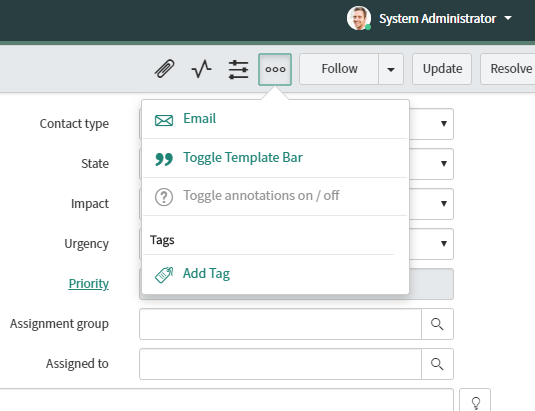
From the table’s form, the email client is accessed by clicking the three dots in the header of a record’s form, which will reveal an icon labeled “Email.” Clicking on this item will open the email client.
From within the email client, emails can be composed for the purposes of communicating with users externally.
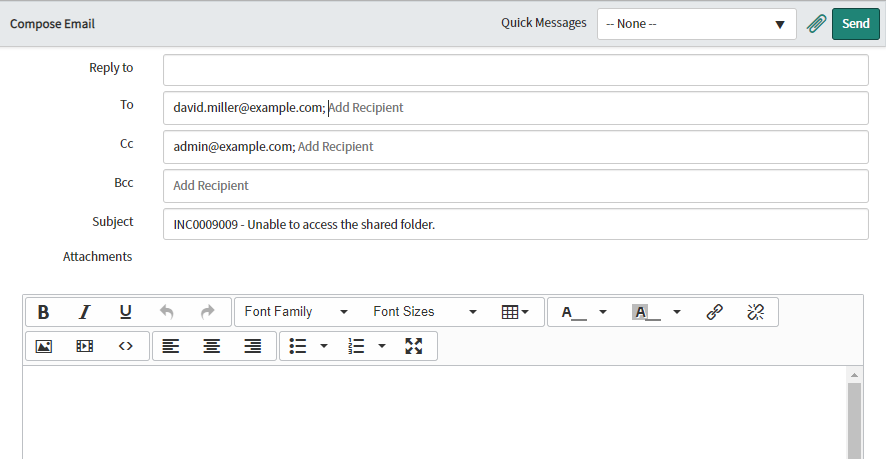
The default values for the To, CC, BCC, Subject, and email body fields can be defined via a Client Template, which in turn can be defined for the table the email client is accessed from, while also taking into account filter conditions, allowing multiple templates for the same table, based on the context. Client Templates are accessed from the System Policy > Email > Client Templates module.
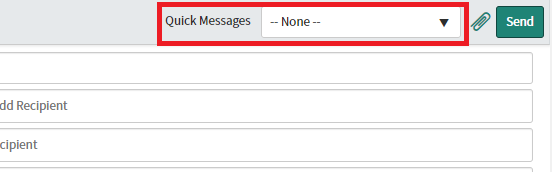
Quick messages can also be configured to allow for standardized, often-sent messages to be delivered with minimal effort. This can be useful for fulfillers if their initial ticket-acknowledgment correspondence is always the same, barring minor details. To select a quick message, a user should access the dropdown menu in the upper-right corner of the email client form. Selecting a message from the dropdown replaces the email body contents with the contents of the Quick Message.
In addition to the above, you can also configure other properties of the email client.
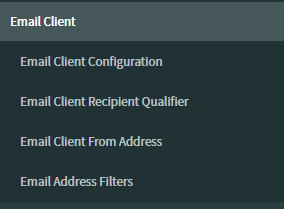
Email Client Configuration lets you build configurations for each table that utilizes the email client. You can choose recipient qualifiers (defined below), whether to display “From” and/or Reply-To fields, and if any email address filters should apply (also defined below).
Email Client Recipient Qualifier lets you define what records are valid to be selected as recipients from within the email client’s auto-complete feature, which field on those records contains the email address the email should be sent to, what the display value should be, and any additional display values in the event that there are duplicates. You can also define filters to omit records as necessary.
Email Client From Address lets you define ‘From’ addresses that outgoing emails should display.
Email Address Filters lets you choose predefined black or whitelists to define who email client emails can be sent to.
While the above technical tip has been provided with care and consideration, it’s important to acknowledge that individual circumstances may vary. Always ensure compatibility and feasibility within your specific ServiceNow environment before implementing any suggestions. Additionally, back up your data and proceed with caution when making any changes to your instance or workflows.
As with any change in ServiceNow, make sure you test any changes prior to moving to production.
To access the email client within ServiceNow, users can click the three dots in the header of a record's form, which will reveal an icon labeled "Email." Clicking on this icon will open the email client, allowing users to compose and send emails directly from the ServiceNow platform.
The email client can be made available on additional tables by accessing that table's dictionary's Collection record and adding "email_client=true" to the record's attribute list, further expanding the accessibility and functionality of the email feature.
Configuring Email Client Templates
The default values for the To, CC, BCC, Subject, and email body fields can be defined via a Client Template, which can be configured for the specific table the email client is accessed from. These templates can take into account filter conditions, allowing multiple templates for the same table based on the context.
This customization feature enables users to set up standardized email templates, streamlining common correspondence and reducing the effort required for users to compose and send emails within the ServiceNow platform.
Utilizing Quick Messages
The email client in ServiceNow also supports the use of Quick Messages, which are pre-configured, often-sent messages that can be easily selected and sent with minimal effort. This feature can be particularly useful for fulfillment teams or other users who frequently send similar initial ticket-acknowledgment correspondence.
To select a Quick Message, users can access the dropdown menu in the upper-right corner of the email client form, allowing them to quickly and efficiently send standardized communications without the need to compose the message from scratch.
Defining Recipient Qualifiers
The email client's auto-complete feature for selecting recipients can be customized using Recipient Qualifiers. These qualifiers allow users to define which records are valid to be selected as recipients, which field on those records contains the email address, what the display value should be, and any additional display values in the case of duplicate email addresses.
By configuring Recipient Qualifiers, organizations can ensure that users are selecting the appropriate email addresses and contacts when composing emails within the ServiceNow platform, improving the overall email communication process.
To access the email client within ServiceNow, users can click the three dots in the header of a record's form, which will reveal an icon labeled "Email." Clicking on this icon will open the email client, allowing users to compose and send emails directly from the ServiceNow platform.
The email client can be made available on additional tables by accessing that table's dictionary's Collection record and adding "email_client=true" to the record's attribute list, further expanding the accessibility and functionality of the email feature.
Configuring Email Client Templates
The default values for the To, CC, BCC, Subject, and email body fields can be defined via a Client Template, which can be configured for the specific table the email client is accessed from. These templates can take into account filter conditions, allowing multiple templates for the same table based on the context.
This customization feature enables users to set up standardized email templates, streamlining common correspondence and reducing the effort required for users to compose and send emails within the ServiceNow platform.
Utilizing Quick Messages
The email client in ServiceNow also supports the use of Quick Messages, which are pre-configured, often-sent messages that can be easily selected and sent with minimal effort. This feature can be particularly useful for fulfillment teams or other users who frequently send similar initial ticket-acknowledgment correspondence.
To select a Quick Message, users can access the dropdown menu in the upper-right corner of the email client form, allowing them to quickly and efficiently send standardized communications without the need to compose the message from scratch.
Defining Recipient Qualifiers
The email client's auto-complete feature for selecting recipients can be customized using Recipient Qualifiers. These qualifiers allow users to define which records are valid to be selected as recipients, which field on those records contains the email address, what the display value should be, and any additional display values in the case of duplicate email addresses.
By configuring Recipient Qualifiers, organizations can ensure that users are selecting the appropriate email addresses and contacts when composing emails within the ServiceNow platform, improving the overall email communication process.